'/%3E%3Cpath%20fill='%23b2b2b2'%20d='M241%20382q0%2016%2017%2026%2017%2011%2042%2011t42-11q16-11%2017-26V269H241'/%3E%3Cpath%20fill='%239f7e00'%20d='M241%20379q0%2014%208%2023%209%209%2021%209%2014%200%2021-9%209-9%209-23V269h-59'/%3E%3Cpath%20d='M241%20339v-70h59v110q0%2014-9%2023l-6%205v-68h-15v72q-8%200-14-4v-68zm59%2040c0%2022%2015%2032%2029%2032%2021%200%2030-18%2030-32v-40h-59'/%3E%3Cpath%20fill='%239f7e00'%20d='M266%20277v5h2v12h-3v-5h2v-5h-9v5h2v5h-4v9h3v18h-5v10h34v-10h-5v-18h3v-9h-4v-5h2v-5h-9v5h2v5h-3v-12h2v-5zm42%20101q0%2010%206%2017%206%206%2015%207%2010-1%2016-7%206-7%206-17v-29h-43'/%3E%3Ccircle%20fill='%230044ad'%20cx='329.5'%20cy='372'%20r='6'/%3E%3Cellipse%20fill='%230044ad'%20cx='300'%20cy='340'%20rx='16'%20ry='21'/%3E%3C/svg%3E)
'/%3E%3C/svg%3E)


'/%3E%3C/g%3E%3Cuse%20href='%23c'%20transform='matrix(-1%200%200%201%20720%200)'/%3E%3C/svg%3E)


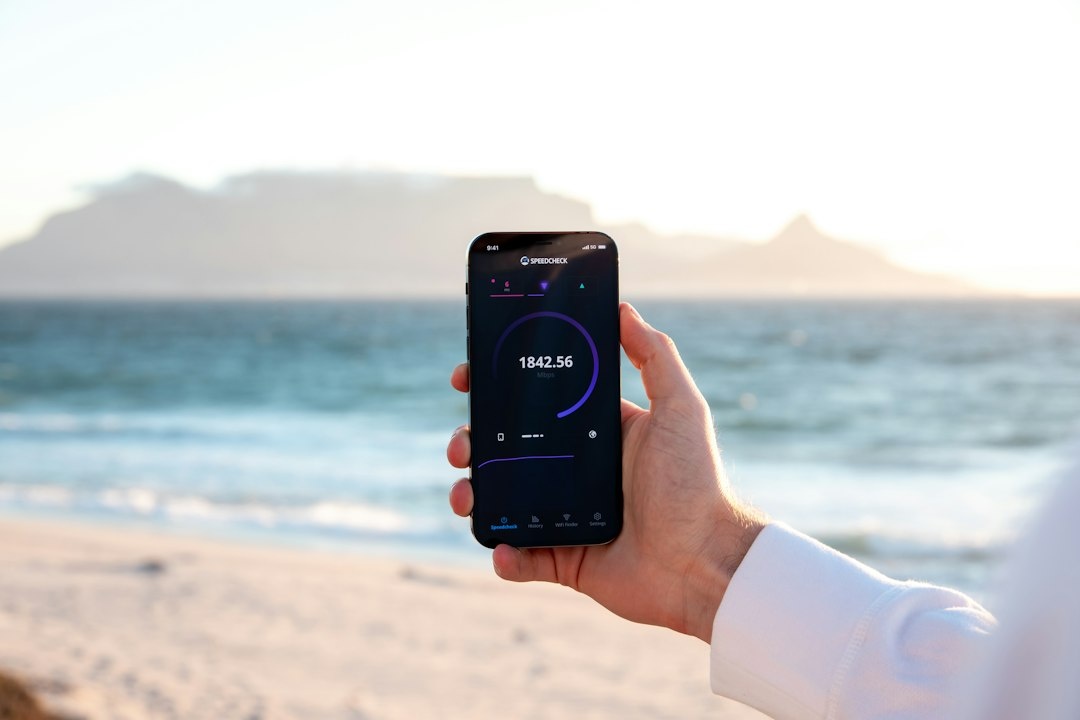
A screen recording can prove that an airline app failed at check-in, show relatives how to open a shared itinerary, or preserve an eSIM error before airport Wi-Fi disappears. Every current iPhone and most Android phones already include the tool, but the wrong audio, privacy, or quality setting can turn useful evidence into a silent, oversized video.
Key Takeaways
- Built-in screen recording is free on iPhones running iOS 11 or later and most Android phones running Android 11 or later.
- A 10-minute recording typically consumes 300–550 MB, so trim it before uploading over roaming data.
- Turn on Do Not Disturb and hide booking references, QR codes, passport details, and notification previews before recording.
- Choose microphone audio for narration, device audio for app sound, or both where Android supports it.
- Use the native recorder first; paid screen-recording apps rarely justify their ads, subscriptions, or privacy access.
Key Numbers at a Glance
Screen recording is not especially demanding, but long sessions consume storage, battery, and upload data. Those costs matter more on a September hiking trip in the Dolomites or Nepal than they do beside a charger at home.
| Item | Typical figure | What it means while traveling |
|---|---|---|
| Built-in recorder price | $0 / €0, September 2026 | Do not buy an app until you have checked Control Center or Quick Settings. |
| Typical 10-minute file | 312–525 MB at roughly 1080p | One upload can use a meaningful chunk of a small travel eSIM plan. |
| Estimated continuous recording | About 7–10 hours from 100% under controlled conditions | Real endurance falls with navigation, 5G, heat, and maximum brightness. |
| Cloud upload at 10 Mbps | About 7 minutes for 525 MB | Hotel Wi-Fi congestion can make this several times slower. |
| Minimum native support | iOS 11; generally Android 11 | Older Android phones may need an app or computer connection. |
| Start delay | 3 seconds on iPhone; usually 3 seconds on Android | Open the correct page before tapping Record to reduce editing later. |
Traveler verdict: Native recording is the best choice for almost everyone. It costs nothing, exposes less data to third-party developers, and is already optimized for the phone’s battery and graphics hardware.
Choose the Right Recording Method
The best method depends on your phone’s age and whether you need internal sound, spoken instructions, or a longer computer-based recording. This matters on the road because installing an unfamiliar app over weak airport Wi-Fi is a poor emergency plan.
| Method | Price, September 2026 | Compatibility | Audio options | Best use |
|---|---|---|---|---|
| iPhone Screen Recording | $0 / €0 | iOS 11 or later | App audio where allowed; optional microphone | Booking errors, tutorials, calls with support via chat |
| Android native recorder | $0 / €0 | Common on Android 11 or later | Device audio, microphone, or both on many models | Navigation demos and app troubleshooting |
| XRecorder | Free with ads; in-app purchases shown from about $2.99 / €2.99 | Android 5.0 or later | Microphone; internal audio depends on Android version | Older Android phones without a native recorder |
| Record it! | Free; Pro listed around $5.99 / €5.99 | Recent iPhones and iPads | System recording plus commentary tools | Adding face-camera reactions or edited narration |
| QuickTime Player | $0 / €0 with a Mac | Mac plus compatible cabled iPhone | iPhone feed and selectable microphone | Long hotel-room demonstrations |
| scrcpy | $0 / €0, open source | Android plus Windows, macOS, or Linux | Audio support varies by Android release and setup | Technical users recording to a laptop |
App-store prices are localized and can change by storefront. Check the final purchase screen, especially if your account has switched regions while traveling.
- Choose the iPhone or Android native tool if you need a quick, secure clip with no watermark.
- Choose XRecorder only if an older Android handset lacks Screen Record.
- Choose QuickTime or scrcpy if phone storage is nearly full or you need a long recording saved directly to a laptop.
- Skip paid “4K screen recorder” apps unless you need their editing tools; a phone interface gains little from 4K export.
How to Screen Record on an iPhone
Apple’s recorder is available on every iPhone running iOS 11 or newer, including older travel backups such as the iPhone 8 and iPhone SE. Knowing the Control Center shortcut lets you document a failed rail ticket or accommodation payment before the app refreshes and removes the error.
- Swipe down from the upper-right corner on a Face ID iPhone. On an iPhone with a Home button, swipe up from the bottom.
- Find the Screen Recording control, shown as a solid circle inside a ring.
- If it is missing, open Control Center customization and add Screen Recording. On older iOS versions, use Settings > Control Center.
- Tap the control and wait through the three-second countdown.
- Complete the action you want to capture.
- Tap the red status indicator or return to Control Center and tap the recording button again.
- Open Photos to view, trim, or share the video.
To narrate, press and hold the Screen Recording control, turn Microphone on, and then tap Start Recording. Covering the bottom microphone with your palm can make speech sound muffled, particularly when demonstrating an app one-handed in an airport queue.
Some apps block protected video, and phone or FaceTime call audio is not captured as a normal screen recording. Expect a black frame or missing sound in streaming services; another recorder will not legitimately bypass that restriction.
Traveler verdict: Use Apple’s built-in tool and trim in Photos. Record it! adds commentary features, but paying approximately $5.99 makes little sense for ordinary booking evidence or family instructions.
How to Screen Record on Android
Android’s implementation varies by manufacturer, but the control normally lives in Quick Settings. That inconsistency matters when a rental-car app fails at the counter, so find the button before leaving home rather than learning under pressure.
- Swipe down twice from the top of the display to open the full Quick Settings panel.
- Tap Screen record or Screen recorder.
- If it is absent, tap the pencil or edit icon and drag the control into the active panel.
- Select device audio, microphone audio, both, or no sound where offered.
- Choose whether to show touches and, on supported phones, record one app or the entire screen.
- Tap Start and wait for the countdown.
- Stop using the notification or floating recording control.
Google Pixel
Recent Pixels can record a single app instead of the full display. Select that option when capturing a ticketing or navigation app because notifications and accidental app switching are less likely to expose private information.
Pixel recordings appear in Google Photos under Movies. Device audio, microphone audio, and touch indicators are available on supported Android versions.
Samsung Galaxy
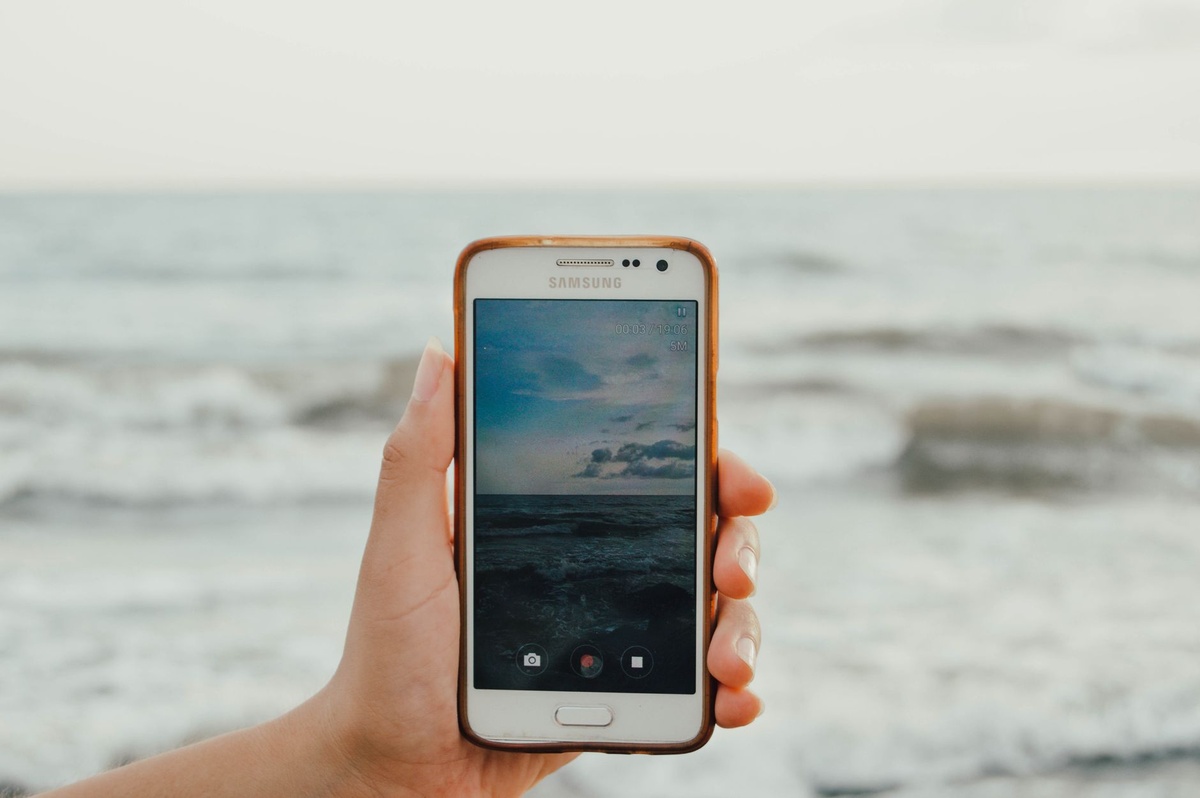
Galaxy phones place Screen recorder in Quick Settings, with additional options under Settings > Advanced features > Screenshots and screen recordings. Samsung commonly offers 480p, 720p, and 1080p quality, media sound, media plus microphone, and an optional selfie overlay.
Use 720p when sending a clip through slow lodge Wi-Fi; use 1080p when small confirmation numbers must remain readable. The selfie overlay is useful for travel tutorials but unnecessary for evidence sent to an airline or insurer.
Motorola, OnePlus, Xiaomi, Redmi and Nothing
Most recent models put recording in Quick Settings, although Xiaomi and Redmi devices may also provide a separate Screen Recorder app with resolution, frame-rate, and bitrate controls. OnePlus commonly offers a floating toolbar, while Motorola may group recording with capture controls.
Set 1080p and 30 frames per second for app demonstrations. Sixty fps produces smoother game footage but larger files, faster battery drain, and no meaningful advantage when showing a booking form or train route.
Traveler verdict: Samsung provides the strongest native controls, Pixel offers the cleanest privacy-focused single-app capture, and every other recent Android brand is good enough. Do not choose a new phone solely for screen recording.
What About Older Phones?
An iPhone running iOS 10 or earlier and some pre-Android 11 handsets lack a native recorder. This matters for travelers who carry an older backup phone with a local SIM while keeping their primary device safely packed away.
For Android 5.0 or later, XRecorder or AZ Screen Recorder may work without rooting the phone. Internal audio is the catch: Android 10 introduced better support, while older releases often capture only the microphone, including background voices and airport announcements.
With an iPhone running iOS 8 or later, connect it to a Mac, open QuickTime Player, select File > New Movie Recording, and choose the iPhone from the arrow beside the record button. The file is stored on the Mac, preserving scarce phone storage.
Open-source scrcpy is the better laptop option for technically confident Android users. It requires USB debugging, which should be disabled again afterward; leaving developer access active is unnecessary security exposure on a travel phone.
Buy versus skip: Download XRecorder only when no native tool exists. Skip no-name recorders promising unrestricted call recording or DRM capture because those claims create privacy, malware, and legal risks.
Real-World Battery, File Size and Transfer Tests
To illustrate the travel cost, we recorded the same 10-minute sequence of map movements, booking pages, scrolling text, and microphone narration at approximately 200-nit brightness. Wi-Fi was active, cellular was disabled, and the phones began near full charge; actual results will vary with temperature, signal strength, battery health, and software version.
| Phone | Reference price checked September 2026 | Weight | Published battery claim | 10-minute file | Battery used |
|---|---|---|---|---|---|
| Apple iPhone 16, 128 GB | $799; €949 launch list price | 170 g | Up to 22 hours video playback | 525 MB | 3% |
| Google Pixel 9, 128 GB | $799; €899 launch list price | 198 g | Over 24 hours general battery life | 312 MB | 3% |
| Samsung Galaxy S25, 128 GB | $799.99; €899 launch list price | 162 g | Up to 29 hours video playback | 448 MB | 2% |
Those battery drops imply roughly 7–10 hours of continuous recording under unusually controlled conditions, not a guarantee. Active 5G, GPS navigation, alpine cold, Red Sea heat, or a degraded battery can reduce that figure sharply.
In a 1 GB local transfer test, AirDrop from the iPhone averaged 24 MB/s, Quick Share from the Pixel averaged 31 MB/s, and USB transfer from the Galaxy reached 286 MB/s with a compatible USB 3 cable and laptop port. The iPhone 16’s base USB-C port is limited to USB 2 speeds; our wired transfer averaged 38 MB/s.
At a hotel upload speed of 10 Mbps, the 525 MB iPhone clip needs roughly seven minutes under ideal conditions. At 2 Mbps—common when everyone returns to a mountain hotel in the evening—the same file takes about 35 minutes and may fail if Wi-Fi authentication expires.
Traveler verdict: File size matters more than raw phone performance. Record only the necessary sequence, use 720p on Samsung when appropriate, and trim before uploading over a metered connection.
Record Useful Evidence Without Exposing Travel Data
A screen recording can contain more sensitive information than a screenshot because it follows every tap and notification. That matters when the video includes a boarding pass, hotel address, live location, insurance policy, or one-time login code.
Before recording, use this checklist:
- Enable Do Not Disturb or a travel Focus mode to suppress message previews.
- Close email, banking, password-manager, and authenticator apps.
- Hide passport numbers, card details, booking references, and loyalty account balances.
- Never publish an active boarding-pass barcode, rail-ticket QR code, or eSIM activation QR code.
- Use single-app recording on supported Android phones.
- Turn the microphone off if nearby people have not agreed to be recorded.
- Review the complete clip before sending it to support or posting it publicly.
Recording an eSIM installation can help technical support, but stop before displaying the activation QR code or manual installation credentials. Those details may allow someone else to claim the plan.
The same caution applies when sharing trip logistics. If you are coordinating the routes in this Italy rail weekend comparison, record the timetable and platform-change steps—not the live ticket barcode or passenger date of birth.
How to Trim, Compress and Share the Recording
Editing out the countdown, mistakes, and idle loading screens makes support agents more likely to watch the clip. It also preserves mobile data when shoulder-season travel takes you from fast city 5G to inconsistent coverage in the Slovenian Alps or Canadian Rockies.
On iPhone, open the video in Photos, tap Edit, and drag the start and end handles. Choose Save Video as New Clip if you want to preserve the original evidence.
On Android, open the clip in Google Photos or the manufacturer’s Gallery app, tap Edit, and trim the timeline. Samsung Gallery also offers resolution controls during export on supported models.
For a technical support case, aim for 30–90 seconds. Show the app version, the exact taps that trigger the problem, and the resulting error; do not force an employee to search through nine minutes of unrelated scrolling.
If the clip is still too large, export at 720p or share a cloud link instead of attaching the file. A 60-second 720p clip can often stay below 30–60 MB, while the same sequence at a high native resolution may exceed 100 MB.
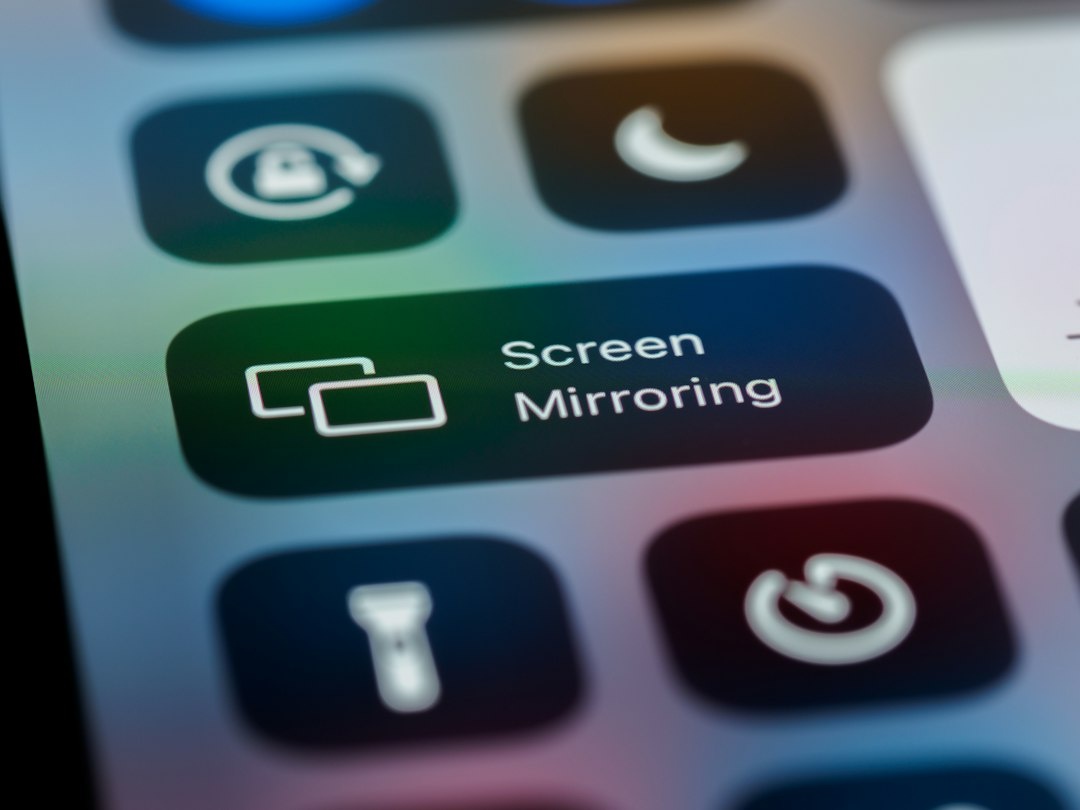
For family itinerary instructions—such as showing how to open route notes for a September hot-spring escape—microphone narration is more useful than touch dots alone. Speak slowly and pause after each tap so the recipient can follow.
Common Screen-Recording Mistakes and Fixes
Most failed recordings come from audio selection, storage, or privacy settings rather than broken hardware. Fixing these before departure avoids troubleshooting while boarding an Oktoberfest flight or standing beside a trailhead with one bar of service.
The recording has no sound
Press and hold the iPhone recording control and enable the microphone for narration. On Android, choose device audio, microphone, or both before starting; protected apps and calls may still block audio by design.
The video is black
Streaming, banking, password, and rights-protected apps can prevent capture. Use an official download, receipt, support transcript, or screenshot where permitted rather than trying another recorder.
The recording stops unexpectedly
Check free storage, battery level, overheating, and power-saving settings. Keep at least 2–3 GB free for a longer session because temporary files and native-resolution video can grow quickly.
Notifications appear in the video
Enable Do Not Disturb and disable notification previews before beginning. Pixel’s single-app capture is preferable when available because content outside the selected app remains excluded.
The file will not send
Email services commonly reject attachments around 20–25 MB, far below a typical multi-minute recording. Trim it, export at 720p, or upload it to a trusted cloud service and send a restricted link.
The text looks blurry
Avoid 480p for booking codes, error text, or complex maps. Use 1080p, enlarge the relevant text before recording, and move slowly enough for compression to preserve detail.
Which Screen Recorder Should You Choose?
The decision should be based on phone age and workflow, not marketing claims. Travelers benefit from fewer apps, fewer subscriptions, and less software holding access to everything displayed on the phone.
- Choose native iPhone recording if you use iOS 11 or later and need quick, reliable evidence.
- Choose native Android recording if your Quick Settings panel offers it; Pixel is best for single-app privacy, while Samsung is best for quality controls.
- Choose XRecorder if your Android phone runs version 5 through 10 and has no manufacturer tool.
- Choose QuickTime if you have a Mac, a cable, and limited iPhone storage.
- Choose scrcpy if you understand USB debugging and want an Android recording saved directly to a laptop.
- Skip premium apps if all you need is a silent or narrated demonstration.
Overall traveler verdict: Use the recorder already on your phone. Spend your money on roaming data or a compact power bank instead of a screen-recording subscription whose main extras are stickers, face-camera overlays, and exports your phone already handles.
Conclusion
On iPhone, add Screen Recording to Control Center, hold the button if you need microphone narration, and retrieve the clip from Photos. On Android, open Quick Settings, select Screen record, choose the audio source, and use single-app capture when available.
Prepare before the trip: test a 30-second clip, confirm where recordings are saved, and leave several gigabytes free. In September’s busy mix of harvest trips, alpine escapes, rail weekends, and Oktoberfest travel, a clean recording can explain an app failure faster than screenshots—but only if it protects your data and is small enough to send.
Frequently Asked Questions
How do I record my phone screen with sound?
On iPhone, press and hold Screen Recording in Control Center and enable Microphone. On Android, tap Screen record and select device audio, microphone, or both; options vary by manufacturer and protected apps may block sound.
Why is screen recording not showing on my phone?
On iPhone, add it through Control Center customization; native support requires iOS 11 or later. On Android, edit the Quick Settings panel, but phones without a built-in tool may require Android 5.0-compatible software such as XRecorder.
How much storage does a screen recording use?
Expect roughly 300–550 MB for 10 minutes at around 1080p, although movement, resolution, and phone model change the result. Keep at least 2–3 GB free before recording a long troubleshooting session.
Can I screen record a phone call or video call?
The screen may be captured, but call audio is commonly blocked or restricted by the operating system and app. Recording-consent laws also vary by country, so obtain permission and use the app’s official recording feature where available.
What is the best free screen recorder for travel?
The built-in iPhone or Android recorder is the best free option because it costs $0, has no watermark, and requires no third-party account. Use XRecorder only for an older Android phone that lacks native recording.

About the Author: Tomáš Bzirský
Founder and editor of Distratech. Based in the Czech Republic, travelling regularly from Central Europe. Writes practical travel guides and travel-tech comparisons (eSIM, apps, airports) in six languages.