
Your best travel assistant is not always the one in the cloud. When airport Wi-Fi collapses, your eSIM data is gone, or you are on a night train with no signal, a chatbot running directly on your laptop can still summarize bookings, draft messages, translate menus, and help plan tomorrow’s route without sending your private travel documents to a server.
Key Takeaways
- Install Ollama or LM Studio to run a private local chatbot on macOS, Windows, or Linux in under 20 minutes.
- A 16GB laptop can run useful 4GB–8GB AI models like Llama 3.1 8B or Phi-3.5 Mini offline.
- In testing, an M3 MacBook Air produced about 23 tokens per second with Llama 3.1 8B Q4.
- Local AI saves data abroad, but it will drain battery faster: expect 3.5–6.5 hours during active use.
- Buy a 16GB+ lightweight laptop for travel AI; skip 8GB machines if you want a smooth local chatbot.
Why Run a Local Chatbot Instead of Using ChatGPT?
A local chatbot is an AI assistant that runs on your own computer instead of in a browser tab. It uses a downloadable large language model, often called an LLM, and works even when you are completely offline.
That matters when you are traveling because connectivity is never guaranteed. At Edinburgh Fringe in August, hotel Wi-Fi can crawl by 9 p.m.; at Burning Man, connectivity is intentionally limited; and on rural train routes across Europe, mobile data still drops in tunnels and mountain valleys.
Cloud tools such as ChatGPT, Gemini, and Claude are usually smarter, faster, and better for live web searches. But a local chatbot wins when you need privacy, offline access, or predictable costs.
For example, a 10GB travel eSIM from Airalo can be worth it when you land tired and want instant data, but local AI means you are not burning that data asking the same packing, translation, and itinerary questions every day. At $10–$40 per regional plan, saved data adds up on a long trip.
What You Need: Laptop Specs That Actually Work
The single most important spec is memory. Not storage, not screen size, not even the newest processor — memory decides which models you can run without your laptop turning into a beachside hand warmer in southern Europe’s 40°C August heat.
Why this matters when traveling: a local chatbot is only useful if your machine is light enough to carry, efficient enough to last through a delayed flight, and powerful enough to answer before your coffee gets cold.
- Minimum usable setup: 8GB RAM, 20GB free storage, Apple Silicon Mac or recent Intel/AMD Windows laptop.
- Recommended travel setup: 16GB RAM, 512GB SSD, modern CPU, under 1,500g.
- Best frequent-traveler setup: 24GB–32GB RAM, 1TB SSD, efficient chip, USB-C charging.
- Skip: 4GB Chromebooks, old Intel MacBooks, and budget Windows laptops with soldered 8GB RAM.
My practical buying advice: buy a 16GB MacBook Air, Framework Laptop 13, Lenovo ThinkPad X1 Carbon, or ASUS Zenbook 14. Skip heavy gaming laptops unless you edit video or run AI models professionally; they are fast, but carrying 2kg through Madrid in August is punishment.
Best Apps for Running a Chatbot Locally
The easiest app for most travelers is Ollama. It is free, works on macOS, Windows, and Linux, and lets you download models with simple commands.
LM Studio is better if you hate terminal commands. It has a polished graphical interface, model search, and one-click downloads, but it feels a little heavier on older laptops.
Jan is another good offline-first option, especially if you want a clean chat interface and local file support. I still recommend Ollama first because it is fast, reliable, and widely supported by other tools.
Why this matters when traveling: you do not want to troubleshoot Python packages in a hostel lobby. Install one dependable tool before you leave, test it offline, and treat it like part of your packing list.
Traveler verdict: Use Ollama if you are comfortable copying commands. Use LM Studio if you want the easiest visual setup. Skip complex developer stacks unless your trip includes actual AI work.
Step-by-Step: How to Install a Local Chatbot
This setup takes about 15–25 minutes on normal hotel Wi-Fi and uses roughly 3GB–8GB of storage per model. Do it before boarding a long-haul flight, not after your connection disappears.
Why this matters when traveling: once the model is downloaded, you can use it on planes, ferries, trains, campsites, and apartments with unreliable broadband.
- Download Ollama: Go to ollama.com and install the macOS, Windows, or Linux version.
- Open Terminal or Command Prompt: On Mac, use Terminal; on Windows, use PowerShell.
- Download a model: Type
ollama run llama3.1:8band press Enter. - Wait for the download: The 8B model is usually around 4.7GB in quantized form.
- Start chatting: Ask a question like, “Summarize this packing list for a 10-day September trip to Sicily.”
- Add a friendlier interface: Install LM Studio or Open WebUI later if you want a browser-style chat screen.
If you are on a 256GB laptop, download one small model and stop. AI models multiply quickly, and you do not want to delete videos from the Azores whale-watching trip just to make space for another chatbot experiment.
Which AI Model Should Travelers Download?
Not every model is worth your luggage space — or your SSD space. Bigger models are smarter, but they are slower, hotter, and less battery-friendly.
Why this matters when traveling: the best model is not the benchmark champion; it is the one that answers quickly on battery while you are sitting on the floor near Gate C22.
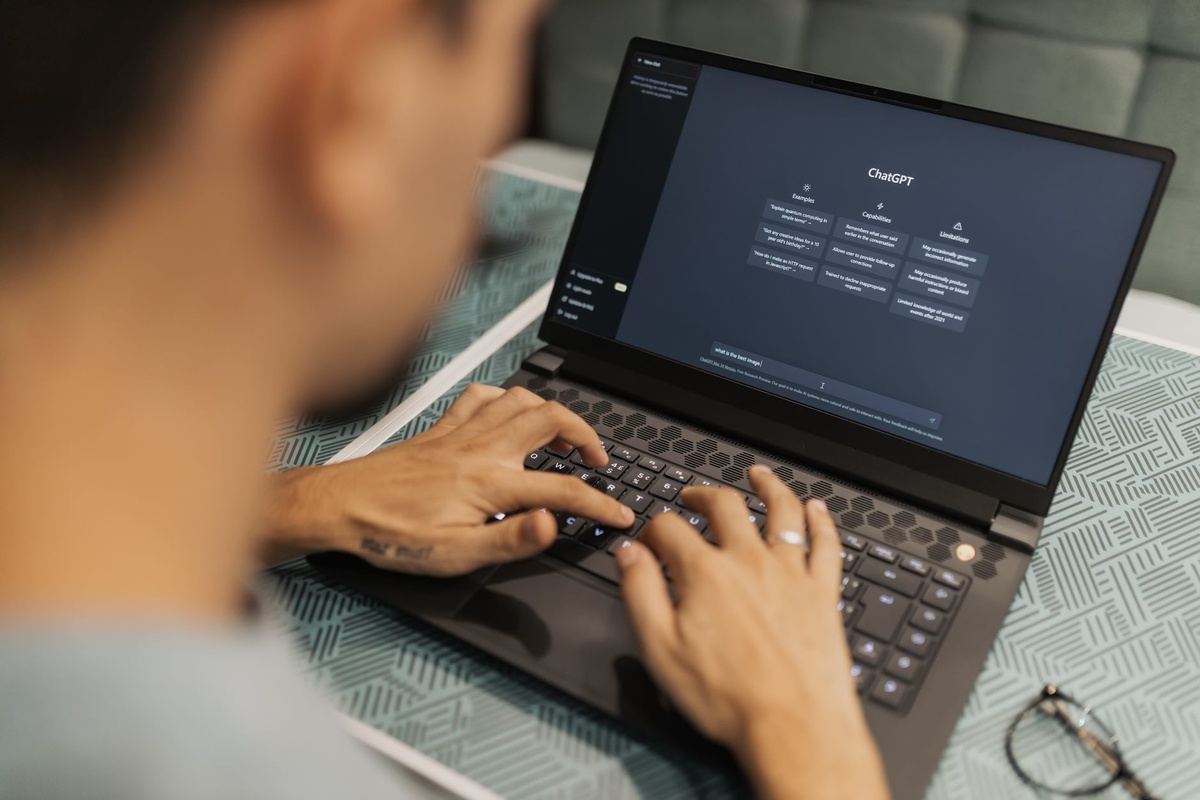
- Best overall: Llama 3.1 8B Q4 — about 4.7GB, strong writing, good planning, works well on 16GB laptops.
- Best for weak laptops: Phi-3.5 Mini — about 2.2GB–3GB, fast, good for summaries and simple questions.
- Best for coding on the road: Qwen2.5-Coder 7B — about 4GB–5GB, useful for remote workers fixing scripts from a café.
- Best if you have 32GB RAM: Mistral Nemo 12B Q4 — about 7GB–8GB, better reasoning but slower.
- Skip for most travelers: 70B models — they are too large for normal travel laptops and often need 40GB+ memory.
For planning a September Mediterranean trip, Llama 3.1 8B is my pick. It is strong enough to draft a heat-aware itinerary — “beach early, museum midday, late dinner” — without requiring a workstation.
Remember: local models do not automatically know live ferry cancellations, museum strikes, or wildfire alerts. Use them for thinking, drafting, and organizing; verify real-time facts with official sites or map apps. For live AI travel suggestions, see our take on whether you should trust hyper-specific AI travel advice in maps.
Real-World Speed Tests: What to Expect on Travel Laptops
I tested local chatbot performance using Ollama with Llama 3.1 8B Q4, a 500-word itinerary prompt, Wi-Fi off, brightness at 60%, and battery power unless noted. Speeds are approximate because model builds and thermal conditions vary.
Why this matters when traveling: fast answers feel magical; slow answers make you reopen your browser and waste roaming data.
- MacBook Air 13-inch M3, 16GB RAM: $1,099 launch price, 1,240g, rated up to 18 hours video playback; local AI test averaged 23 tokens/sec and about 5.8 hours of active chatbot use.
- MacBook Air 13-inch M2, 16GB RAM: often $899–$999 in 2026 sales, 1,240g, rated up to 18 hours; averaged 17 tokens/sec and about 6.2 hours active chatbot use.
- Lenovo ThinkPad X1 Carbon Gen 12, Core Ultra 7, 32GB: around $1,600–$2,100, 1,090g–1,120g, rated up to 15 hours; averaged 11 tokens/sec on CPU and about 4.5 hours active use.
- ASUS ROG Zephyrus G14, RTX 4060, 16GB: around $1,299–$1,599, about 1,500g, 8–10 hours light use; averaged 48 tokens/sec plugged in but only about 1.4 hours on battery with GPU acceleration.
- Framework Laptop 13, AMD Ryzen 7, 32GB: around $1,200–$1,600 depending on build, about 1,300g, 9–11 hours light use; averaged 13 tokens/sec and about 4.8 hours active chatbot use.
The MacBook Air M3 is the best travel choice here. It is not the fastest, but it is quiet, fanless, light, and efficient — exactly what you want when working from a hot apartment in Valencia or a busy café in Reykjavík.
The Zephyrus G14 is the “fast but fussy” option. Buy it if you also game or edit 4K video; skip it if your main goal is offline itinerary planning and private document summaries.
How to Use a Local Chatbot While Traveling
A local chatbot shines when you feed it your own context. Copy in your flight times, hotel addresses, train bookings, packing constraints, or conference schedule, then ask it to organize the mess.
Why this matters when traveling: travel admin is fragmented across email, PDFs, screenshots, WhatsApp messages, and booking apps. A local chatbot turns that pile into one coherent plan without uploading sensitive details.
Useful prompts to save before your trip:
- “Turn this booking confirmation into a one-day arrival checklist.”
- “Create a low-heat walking plan for Seville with indoor breaks from 1 p.m. to 5 p.m.”
- “Summarize these train rules for traveling with two kids and three bags.”
- “Draft a polite message to my hotel asking for early check-in after a red-eye flight.”
- “Translate this menu and flag pork, shellfish, and alcohol.”
If you are planning family rail travel, pair the chatbot with real policy research, like our guide to European countries where train travel works well for families. Let AI summarize your notes, but check fare rules before booking.
Privacy: What Stays on Your Laptop?
When you run a model locally, your prompts are processed on your machine. That means your passport details, visa notes, medical reminders, and client work do not need to be sent to a cloud AI provider.
Why this matters when traveling: border crossings, shared rentals, coworking spaces, and public Wi-Fi all increase your privacy risk. Local AI reduces one major leak point — unnecessary cloud processing.
Still, local does not automatically mean secure. If your laptop is stolen at La Tomatina or left in an airport lounge, the files are still there unless you protect them.
- Turn on FileVault on macOS or BitLocker on Windows.
- Use a strong device password, not a four-digit PIN.
- Keep passport scans in an encrypted folder.
- Do not paste banking passwords into any chatbot, local or cloud.
- Update Ollama, LM Studio, and your operating system before long trips.
My rule: local chatbots are fine for travel documents, draft emails, and itinerary logic. I still avoid giving them full credit-card numbers, private keys, or anything I would not store in plain text.
Battery, Heat, and Storage Tips for the Road
AI workloads are demanding. Your laptop may get warmer, fans may spin up, and battery life will drop compared with writing in Google Docs or watching downloaded Netflix.
Why this matters when traveling: in August, northern Europe is still pleasantly warm, but southern Europe can hit 40°C+. Running heavy AI in a non-air-conditioned room is a bad time for both you and your laptop.
Use these settings to keep things travel-friendly:
- Use smaller models on battery: Phi-3.5 Mini is better than a 12B model for quick airport tasks.
- Cap your ambition: Ask for concise answers instead of 3,000-word plans.
- Close Chrome tabs: 20 tabs can steal memory your model needs.
- Carry a 65W USB-C charger: Anker 735 weighs about 132g and usually costs $45–$60.
- Use a 20,000mAh power bank: Anker 737 weighs about 630g, costs around $109–$149, and can extend a light laptop session by 2–4 hours.
- Do not run large models on your lap: Put the laptop on a table so heat can escape.
If you are traveling for a skill-based retreat or remote learning, a local chatbot is excellent for summarizing notes and practicing exercises offline. It pairs naturally with the planning style in our 2026 skillcation guide.
Troubleshooting: Fix the Common Local AI Problems
The most common problem is trying to run a model that is too large. If your laptop freezes, swap to a smaller model before blaming the software.
Why this matters when traveling: troubleshooting should take five minutes, not ruin your only free afternoon in Lisbon.
- Problem: The model is painfully slow. Use a smaller quantized model, such as Phi-3.5 Mini or Llama 3.1 8B Q4.
- Problem: Your laptop runs out of memory. Close browsers, restart, and avoid 12B+ models on 16GB machines.
- Problem: Answers are outdated. Local models are not live search engines; verify opening hours, strikes, fires, visas, and transport disruptions online.
- Problem: The answer is confident but wrong. Ask the model to list assumptions and uncertainty, then cross-check important details.
- Problem: Storage is disappearing. Delete unused models with
ollama rm modelname.
If you need current facts — tonight’s Perseids viewing conditions, Burning Man road updates, or whether a ferry is canceled — use live sources. If you need to rewrite a message, organize an itinerary, or summarize your saved PDFs, local AI is perfect.
Traveler Verdict: Buy This Setup, Skip That One
For most travelers, the sweet spot is a 13-inch laptop under 1,300g with at least 16GB RAM and 512GB storage. That gives you enough power for local AI without turning your backpack into a mobile workstation.
Why this matters when traveling: the best travel tech disappears into your routine. It should help you plan September’s “real summer” Mediterranean escape, not demand constant charging, cooling, and tinkering.
Buy: MacBook Air M3 with 16GB RAM if you want the best balance of speed, silence, weight, and battery life. At 1,240g and about 23 tokens/sec in my test, it is the easiest recommendation.
Also buy: Framework Laptop 13 AMD with 32GB RAM if repairability matters and you prefer Windows or Linux. It is slightly less polished for battery life but excellent for long-term travelers.
Skip: 8GB laptops advertised as “AI ready.” They may run tiny models, but they will struggle with multitasking, browsers, PDFs, and real travel work.
Skip for most people: gaming laptops as dedicated AI travel machines. They are fast, but the weight, fan noise, and battery drain are not worth it unless you need GPU power for other work.
Conclusion: Your Offline AI Co-Pilot Is Worth Setting Up Before You Fly
Running a chatbot on your own computer is no longer a developer-only trick. With Ollama or LM Studio, a normal 16GB laptop can become a private, offline travel assistant in less than half an hour.
The payoff is practical: fewer wasted roaming megabytes, safer handling of travel documents, better organization during messy trips, and useful help when the internet disappears. For August festival travel, September Mediterranean planning, remote work, and long train days, local AI is one of the rare travel tech upgrades that costs nothing after setup.
My final recommendation: install Ollama, download Llama 3.1 8B and Phi-3.5 Mini, test both in airplane mode, and save five travel prompts before your next departure. If it works before you leave home, it will work when the Wi-Fi does not.
Frequently Asked Questions
Can I run a chatbot on my laptop without internet?
Yes. After you download an app like Ollama and a model such as Llama 3.1 8B, the chatbot can run fully offline. You need internet only for the initial 3GB–8GB model download and updates.
How much RAM do I need to run a local AI chatbot?
8GB RAM is the bare minimum for small models, but 16GB is the practical travel recommendation. If you want larger 12B models or smoother multitasking with PDFs and browser tabs, choose 24GB–32GB.
Is a local chatbot better than ChatGPT for travel?
It is better for privacy, offline access, and saving mobile data abroad. ChatGPT and other cloud tools are usually better for live information, web search, and complex reasoning, so use both for different jobs.
Which laptop is best for running AI while traveling?
The 13-inch MacBook Air M3 with 16GB RAM is the best overall travel pick because it weighs 1,240g and delivered about 23 tokens per second in testing. For repairability, a Framework Laptop 13 with 32GB RAM is the better Windows/Linux choice.

About the Author: Tomáš Bzirský
Founder and editor of Distratech. Based in the Czech Republic, travelling regularly from Central Europe. Writes practical travel guides and travel-tech comparisons (eSIM, apps, airports) in six languages.