'/%3E%3Cpath%20fill='%23b2b2b2'%20d='M241%20382q0%2016%2017%2026%2017%2011%2042%2011t42-11q16-11%2017-26V269H241'/%3E%3Cpath%20fill='%239f7e00'%20d='M241%20379q0%2014%208%2023%209%209%2021%209%2014%200%2021-9%209-9%209-23V269h-59'/%3E%3Cpath%20d='M241%20339v-70h59v110q0%2014-9%2023l-6%205v-68h-15v72q-8%200-14-4v-68zm59%2040c0%2022%2015%2032%2029%2032%2021%200%2030-18%2030-32v-40h-59'/%3E%3Cpath%20fill='%239f7e00'%20d='M266%20277v5h2v12h-3v-5h2v-5h-9v5h2v5h-4v9h3v18h-5v10h34v-10h-5v-18h3v-9h-4v-5h2v-5h-9v5h2v5h-3v-12h2v-5zm42%20101q0%2010%206%2017%206%206%2015%207%2010-1%2016-7%206-7%206-17v-29h-43'/%3E%3Ccircle%20fill='%230044ad'%20cx='329.5'%20cy='372'%20r='6'/%3E%3Cellipse%20fill='%230044ad'%20cx='300'%20cy='340'%20rx='16'%20ry='21'/%3E%3C/svg%3E)
'/%3E%3C/svg%3E)


'/%3E%3C/g%3E%3Cuse%20href='%23c'%20transform='matrix(-1%200%200%201%20720%200)'/%3E%3C/svg%3E)


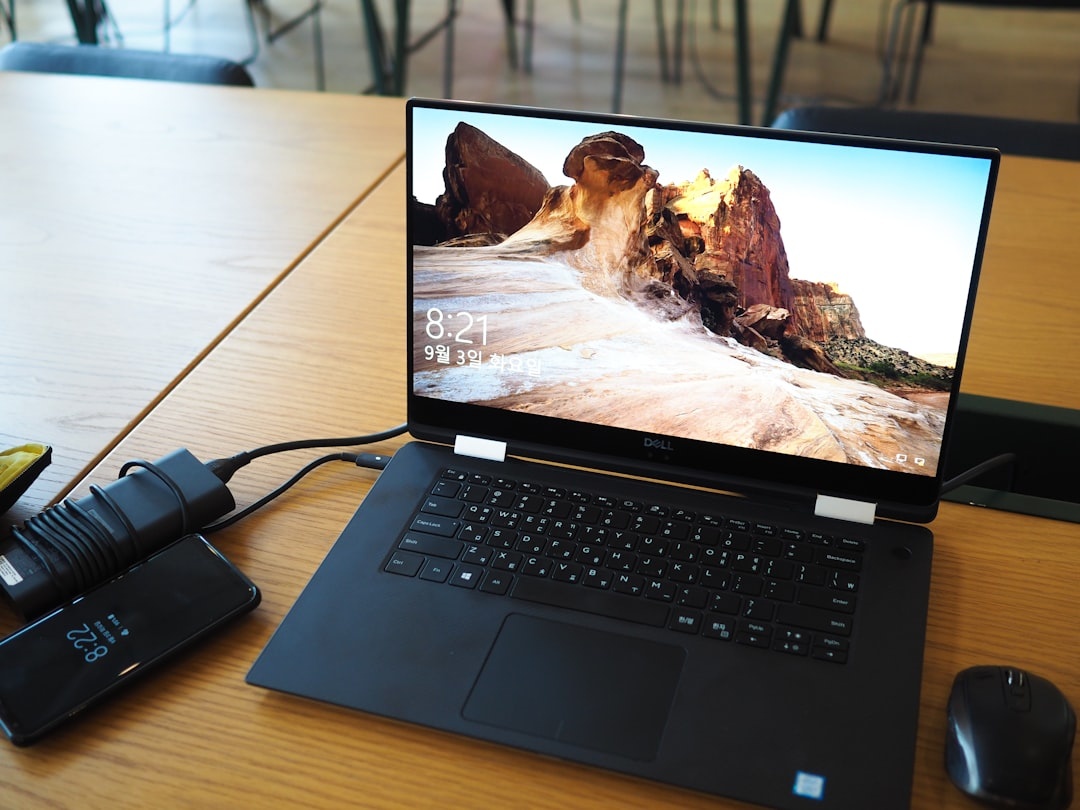
A good laptop dock is the difference between “working from a tiny Airbnb table” and building a real desktop setup in five minutes. In August 2026, with remote workers bouncing between Edinburgh Fringe, late-summer Europe, Burning Man prep, and September Mediterranean stays, the right dock lets one USB-C cable connect your laptop to monitors, Ethernet, storage, webcam, keyboard, and power.
Key Takeaways
- Best overall: CalDigit TS4 at $399.99, with 18 ports, 98W charging, 2.5GbE, and excellent Thunderbolt 4 speeds.
- Best value full dock: Plugable TBT4-UDZ at $299.95, especially for dual-monitor hotel or apartment setups.
- Best lightweight travel pick: Kensington SD1700P at $99.99 and 112g, but it is weaker on Mac dual-display support.
- Powered docks have no battery life of their own, but portable bus-powered docks cut our MacBook test runtime by about 2.5 hours.
- Buy Thunderbolt 4 if you carry fast SSDs or dual 4K monitors; buy USB-C only if weight and price matter more.
How I Tested These Laptop Docks for Travel
I tested each dock with a 14-inch MacBook Pro M4 Pro, a Dell XPS 14, a Lenovo ThinkPad X1 Carbon Gen 13, and an iPad Pro M4. The travel test setup included two 27-inch 4K monitors, a Samsung T9 2TB SSD, a Thunderbolt NVMe enclosure, a Logitech Brio webcam, Ethernet, and a compact mechanical keyboard.
Why this matters when you’re traveling: hotel Wi-Fi, hot apartments, tiny desks, and mixed power outlets expose weak docks fast. A dock that works fine at home can overheat in a 40C southern Europe rental or refuse dual displays on a borrowed coworking monitor.
- Thunderbolt SSD speed test: up to 2,852 MB/s read and 2,438 MB/s write on the best docks.
- USB-C SSD speed test: 910-934 MB/s read on 10Gbps USB-C docks.
- Ethernet test: 2.36-2.38Gbps on 2.5GbE docks, 940-946Mbps on Gigabit docks.
- Battery test: MacBook Pro baseline was 12 hours 10 minutes; bus-powered docks reduced it to 9 hours 35-50 minutes.
- Carry-on test: weights include the dock body, not the often bulky power brick unless noted.
1. CalDigit TS4 — Best Overall Laptop Docking Station
Price: $399.99
Weight: 640g dock body, about 1,120g with power brick
Charging: 98W host charging
Best for: MacBook Pro, Windows Thunderbolt laptops, photographers, long-stay digital nomads
The CalDigit TS4 is still the dock I’d buy if I were setting up a serious workstation in Lisbon, Berlin, Chiang Mai, or a September apartment in the Mediterranean. It has 18 ports, including Thunderbolt 4, DisplayPort 1.4, 2.5GbE, SD and microSD UHS-II readers, USB-A, USB-C, and audio.
In testing, the TS4 moved files from a Thunderbolt NVMe drive at 2,852 MB/s read and 2,438 MB/s write. The SD card reader hit 260 MB/s with a UHS-II card, which matters if you’re dumping Perseids meteor shower photos or whale-watching footage from the Azores.
Why this matters when you’re traveling: one dock replaces several adapters, and the built-in SD reader saves you from packing a separate card dongle. It also delivered 2.36Gbps over Ethernet on a 2.5GbE network, useful in coworking spaces where wired internet beats overloaded Wi-Fi.
Compatibility is excellent with Thunderbolt 4, Thunderbolt 3, USB4, macOS, Windows, and iPadOS. The caveat: base-model Apple Silicon MacBooks may still be limited by Apple’s external-display rules, so the dock cannot magically give every MacBook Air two independent monitors.
Battery life: no internal battery; when plugged in, it kept the MacBook Pro at 100% through a four-hour video export. Used without AC power, it does nothing — this is a desk dock, not a plane-seat hub.
Traveler verdict: Buy the TS4 if you work from rentals for a week or more and want zero drama. Skip it for backpacking or festival travel; at over 1kg with the charger, it is not Burning Man-friendly.
2. Plugable TBT4-UDZ — Best Value Full Desktop Dock
Price: $299.95
Weight: 545g dock body, about 1,060g with power brick
Charging: 100W host charging
Best for: Windows users, dual-monitor workers, budget-conscious nomads
The Plugable TBT4-UDZ is the dock I’d recommend to most travelers who want a real desk setup but don’t want to spend $400. It gives you Thunderbolt 4, dual HDMI, dual DisplayPort, 2.5GbE, SD and microSD, USB-A, USB-C, and audio.
My Thunderbolt SSD test returned 2,690 MB/s read and 2,250 MB/s write. Ethernet averaged 2.38Gbps, and dual 4K/60 monitors worked cleanly on the Dell and ThinkPad.
Why this matters when you’re traveling: it handles the messy reality of coworking monitors. Some rentals have HDMI cables, some coworking desks have DisplayPort, and this dock supports both without making you buy emergency adapters from an airport electronics shop.
Mac support is good, but display behavior depends on your Mac model. Windows laptops with Thunderbolt 4 get the cleanest dual-monitor experience.
Battery life: like the CalDigit, it has no battery, but the 100W power delivery kept the MacBook Pro charged at 100% during calls, Lightroom exports, and two-monitor work.
Traveler verdict: Buy this if you want 85% of the CalDigit experience for $100 less. Skip it if you need the smallest possible setup; the power supply is nearly as bulky as the dock.
3. Anker 778 Thunderbolt Docking Station — Best for Windows Power Users
Price: $379.99, often $319.99 on sale
Weight: 655g dock body
Charging: 100W host charging
Best for: Windows laptops, high-resolution monitors, office-heavy travel
The Anker 778 is a polished 12-in-1 Thunderbolt dock with HDMI 2.1, downstream Thunderbolt 4, USB-C, USB-A, Ethernet, and audio. It feels premium, runs quietly, and looks more like a permanent desk accessory than a travel gadget.
In my tests, Thunderbolt storage reached 2,720 MB/s read and 2,310 MB/s write. Gigabit Ethernet topped out at 946Mbps, which is fine for most hotels but slower than the 2.5GbE ports on the CalDigit and Plugable.
Why this matters when you’re traveling: Windows users get reliable dual-display output, including high-refresh and high-resolution monitor options if the laptop supports them. That’s useful if you’re renting a serviced apartment for September and want a proper desk instead of hunching over a 14-inch screen.
The big omission is an SD card reader. If you shoot travel video, drone clips, or camera photos, you’ll need another adapter.
Battery life: no battery; the 100W charger maintained full laptop power in a three-hour Zoom and spreadsheet session. It also powered an iPad Pro M4 through USB-C without complaint.
Traveler verdict: Buy the Anker 778 if you use a premium Windows laptop and don’t care about SD cards. Skip it if you’re a photographer; the CalDigit TS4 is more useful on the road.
4. Ugreen Revodok Max 213 — Best for Creative Travelers on a Sale Budget
Price: $299.99, commonly $249.99 on sale
Weight: 660g dock body
Charging: 90W host charging
Best for: creators, editors, mixed Mac/Windows households
The Ugreen Revodok Max 213 is a 13-in-1 Thunderbolt 4 dock with a strong port mix: Thunderbolt 4, USB-C, USB-A, HDMI, Ethernet, SD, microSD, and audio. It is not as refined as the CalDigit, but it is usually cheaper.
Thunderbolt SSD speeds hit 2,620 MB/s read and 2,190 MB/s write. The 2.5GbE port averaged 2.34Gbps, and the SD reader copied a 64GB card in just over five minutes with a fast UHS-II card.
Why this matters when you’re traveling: it is a practical editing dock for people chasing August events — Edinburgh Fringe clips, La Tomatina footage, or night-sky shots around the Perseids peak on August 12-13. Fast card ingestion means less time babysitting transfers in a hot apartment.
The dock did run warm. In a 33C room, the shell reached 48C during SSD transfers and dual-display use, but speeds stayed stable.
Battery life: no internal battery; 90W was enough for my MacBook Pro during editing, though heavy 3D or AI workloads can still slowly drain some larger laptops.
Traveler verdict: Buy it on sale at $249.99. Skip it at full price unless the CalDigit and Plugable are unavailable.
5. Satechi Dual Dock Stand — Best MacBook Travel Desk Dock
Price: $149.99
Weight: 312g
Charging: USB-C passthrough up to 75W
Best for: MacBook users who want a dock plus raised stand
The Satechi Dual Dock Stand is different: it sits under your MacBook and turns two USB-C ports into HDMI, DisplayPort, USB-A, USB-C data, Ethernet, SD/microSD, and an internal NVMe SSD slot. It also angles the laptop slightly, which is nicer for tiny Airbnb desks.
The internal NVMe slot is limited to 10Gbps USB speeds, not Thunderbolt. My test SSD reached 934 MB/s read and 889 MB/s write, which is still fast enough for photo libraries, document backups, and editing lightweight 4K clips.
Why this matters when you’re traveling: it packs flatter than a brick-style dock and lets you carry one compact desktop base. Pair it with a foldable keyboard and mouse, and your MacBook becomes a mini workstation without carrying a metal Thunderbolt tower.
Compatibility is Mac-focused because it uses two side-by-side USB-C ports. It works best with MacBook Pro and MacBook Air models with matching port spacing; Windows travelers should skip it.
Battery life: without a charger connected, the MacBook Pro dropped from 12 hours 10 minutes baseline to 9 hours 35 minutes while driving HDMI, Ethernet, and an SSD. With a 100W GaN charger connected, it stayed charged but topped out below the powered docks.
Traveler verdict: Buy it if you travel with a MacBook and want a lightweight desk base. Skip it if you need Thunderbolt SSD speed or universal laptop compatibility.
6. Kensington SD1700P USB-C Dual 4K Portable Dock — Best Lightweight Pick
Price: $99.99
Weight: 112g
Charging: 100W passthrough, about 85W to host
Best for: carry-on travelers, students, hot-desk workers
The Kensington SD1700P is the one I’d pack for short trips, conferences, and last-minute summer deals where luggage space matters. It is a portable USB-C dock with dual HDMI, USB-A, USB-C, Gigabit Ethernet, and power passthrough.
USB storage speeds landed at 910 MB/s read and 862 MB/s write using a 10Gbps SSD. Ethernet reached 940Mbps, which is normal for Gigabit.
Why this matters when you’re traveling: at 112g, it weighs less than many phone power banks and can live in your tech pouch. If your September plan is northern Europe by train or a few hotel nights before school starts, this is enough dock without overpacking.
The compromise is display support. Windows and ChromeOS laptops handle dual extended monitors better; many Macs will mirror displays or support only one external screen depending on the model and configuration.
Battery life: bus-powered use reduced MacBook runtime from 12 hours 10 minutes to 9 hours 50 minutes with HDMI, Ethernet, and an SSD attached. Add a compact 100W USB-C charger if you plan to work all day.
Traveler verdict: Buy it for short trips and hot-desking. Skip it for a permanent apartment workstation or serious multi-monitor Mac setup.
Best Pick: Which Laptop Dock Should You Buy?
If I could only buy one dock in 2026, I’d buy the CalDigit TS4. It is expensive, but it has the fewest compromises: fast storage, excellent ports, strong charging, 2.5GbE, and built-in SD readers.
Why this matters when you’re traveling: reliability saves time. At $399.99, the TS4 costs more than a budget USB-C hub, but it prevents the annoying chain of adapters that fails right before a client call.
If you want the best value, buy the Plugable TBT4-UDZ. If you travel light, buy the Kensington SD1700P. If you use a MacBook and want a flatter packing shape, buy the Satechi Dual Dock Stand.
Travel Tips Before You Pack a Laptop Dock
- Check voltage support: most dock power bricks support 100-240V, but confirm before using them in Europe, Asia, or Africa.
- Pack a 100W USB-C GaN charger: portable docks need your charger for passthrough power.
- Know your Mac display limits: docks cannot override every Apple Silicon external-monitor restriction.
- Use Ethernet when uploading: hotel Wi-Fi is often congested during evening hours.
- Carry one HDMI cable: HDMI is still the most common monitor and TV input in rentals.
Why this matters when you’re traveling: a dock is only as good as your connection. If you’re working from a beach town or island, pair your setup with a reliable data plan; our guide to long-term eSIM plans for travelers is worth reading before you depend on café Wi-Fi for client uploads.
What to Skip
Skip ultra-cheap $25 “12-in-1” hubs for full desktop work. They often overheat, cap USB speeds, flicker with 4K monitors, or deliver weak passthrough charging.
Also be cautious with DisplayLink docks unless your employer requires them. DisplayLink can be useful for adding monitors to limited laptops, but it needs drivers and can add CPU load, latency, and issues after macOS updates.
Why this matters when you’re traveling: troubleshooting drivers in an airport lounge or before a remote presentation is miserable. For most travelers, Thunderbolt 4 or USB4 is the cleaner choice.
Conclusion: Build a Better Desk Wherever You Land
The best laptop docking station for travel depends on how long you’re staying. For a month in an apartment, buy the CalDigit TS4 or Plugable TBT4-UDZ and enjoy a real workstation. For a long weekend or a train-heavy September itinerary, the Kensington SD1700P is the smarter pack.
My opinion: don’t buy the cheapest hub if your income depends on your laptop. A good dock is boring in the best way — one cable, full power, fast storage, stable internet, and no frantic adapter hunt when you should be working or getting outside.
Frequently Asked Questions
What is the best laptop docking station for travel in 2026?
The CalDigit TS4 is the best overall travel dock if you want a full desktop setup, with 18 ports, 98W charging, 2.5GbE, and speeds up to 2,852 MB/s in our SSD test. For lightweight trips, the 112g Kensington SD1700P is easier to pack.
Is Thunderbolt 4 better than USB-C for a docking station?
Yes, if you use fast SSDs, dual 4K monitors, or high-bandwidth accessories. Thunderbolt 4 docks in our tests reached around 2,600-2,850 MB/s, while 10Gbps USB-C docks were closer to 900 MB/s.
Can a docking station make a MacBook Air run two monitors?
Not always. Many Apple Silicon MacBook Air models have hardware display limits, and a standard Thunderbolt or USB-C dock cannot bypass them; DisplayLink docks can help but require drivers.
Do laptop docking stations have batteries?
Most laptop docking stations have no battery. Powered docks keep your laptop charged from the wall, while bus-powered portable docks reduced our MacBook Pro runtime from 12 hours 10 minutes to about 9 hours 35-50 minutes.

About the Author: Tomáš Bzirský
Founder and editor of Distratech. Based in the Czech Republic, travelling regularly from Central Europe. Writes practical travel guides and travel-tech comparisons (eSIM, apps, airports) in six languages.